What this hub is
Query-shaped how-tos: how to install, open the overlay, enable FSR4, fix a missing overlay and remove OptiScaler cleanly.
OptiScaler 0.9.4 is a community translation layer for DirectX 11, DirectX 12 and Vulkan games. This host is an independent guide, not the official project site. Start from Download, then come back here for the per-game checks.
The safe order
- Back up the game folder.
- Extract the ZIP next to the main game executable.
- Launch offline and press Insert.
- Change one output at a time, and never test in online or anti-cheat protected games.
Pages in OptiScaler how-to
- How to install OptiScaler — Extract the required files beside the main game executable and follow the setup method suitable for that game. Always back up replaced files first.
- How to open the OptiScaler overlay with Insert — Insert is commonly used to open the overlay. Some keyboard layouts may need an alternate combination depending on the game and configuration.
- How to fix the OptiScaler overlay not showing — Common causes include an incorrect install folder, the wrong proxy DLL, input-hook conflicts, overlays, or a game-specific compatibility issue.
- How to fix a game crash after installing OptiScaler — Remove the added files to confirm the cause, then check the correct game executable folder, proxy selection, API support, and known compatibility limitations.
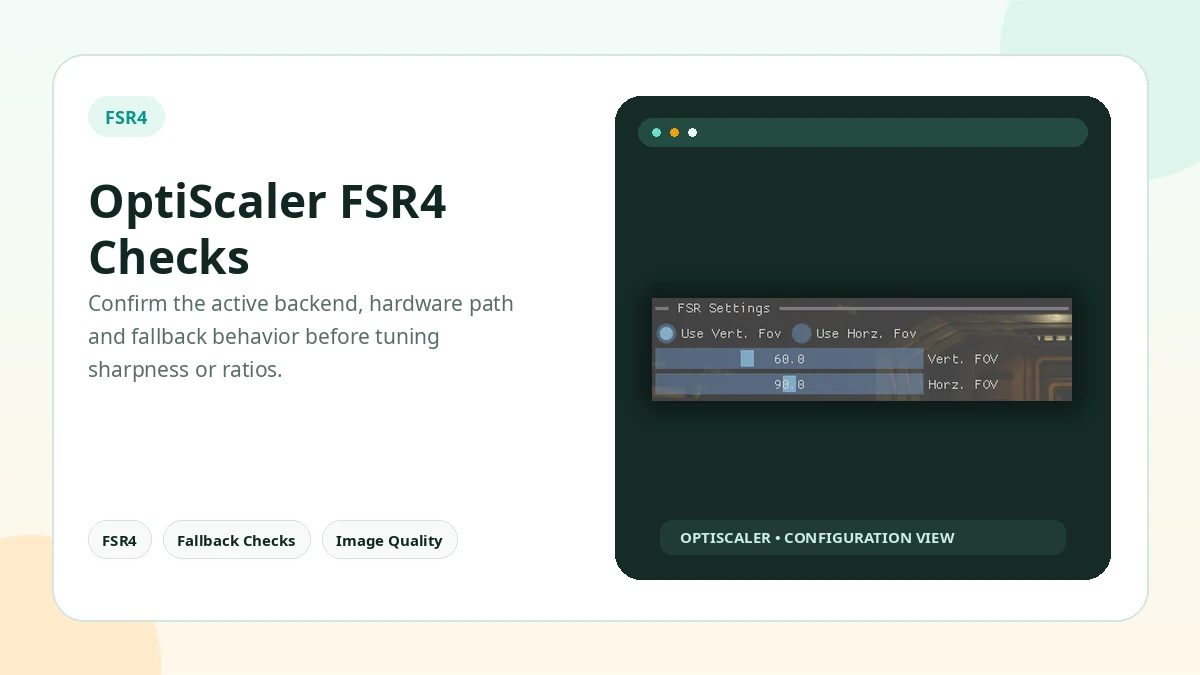
- How to enable FSR4 with OptiScaler — FSR4 depends on the selected output path, GPU capability, driver or SDK behavior, and game compatibility. Enable it in the overlay, then verify it is not a fallback.
- How to tell if FSR4 is really active in OptiScaler — Use the available OptiScaler status or watermark indicators where supported and verify that the reported output matches the intended FSR4 mode rather than a fallback.
- How to use OptiScaler on Linux through Proton — Linux use is possible in supported configurations, commonly through Proton or Wine, but Vulkan, driver, and upscaler requirements can differ from Windows.
- How to find the folder OptiScaler must go in — OptiScaler goes next to the main game executable, not the launcher shortcut. Every store can open that folder for you.
- How to remove OptiScaler from a game — Removing OptiScaler is deleting the files you added and restoring any renamed originals from your backup. The game then runs stock again.
- How to back up a game folder before installing OptiScaler — A backup makes every OptiScaler test reversible: copy the files that may be replaced, note INI changes, and keep one known-good setup per game.
Frequently asked questions
What is OptiScaler?
OptiScaler is a community tool that can intercept supported in-game upscaler calls and redirect them to another supported upscaling backend, with additional tuning options.
How does OptiScaler work in a game?
The game exposes an input upscaler, OptiScaler sits between the game and the selected output backend, and the chosen output handles the final upscaling path where compatibility allows.
Does OptiScaler support DirectX 11?
Yes, DirectX 11 is supported, although the available output methods and behavior can differ from DirectX 12.
Does OptiScaler support DirectX 12?
Yes. DirectX 12 has broad support and is also the API used by experimental OptiFG functionality.
Facts that do not change
- Version: OptiScaler 0.9.4 (reference build, July 2026)
- APIs: DirectX 11, DirectX 12, Vulkan
- Upscalers: DLSS, FSR and XeSS inputs/outputs where compatible
- Frame generation: Experimental OptiFG (DirectX 12)
- Overlay: Insert key
- Install: ZIP extracted next to the main game executable
- Platform: Windows; Linux via Proton/Wine varies
- Site: Independent guide — not the official project site
Practical Checklist
- Keep original files backed up before changing the game folder.
- Test one setting or backend at a time.
- Avoid anti-cheat protected online sessions.
- Document the working configuration before updating.
Related Guides
Continue with the related guides in the sidebar for setup, compatibility, performance, or safety topics.
- OptiScaler FAQ: the official 20 questions, answered — Standalone URLs for the official site's 20 OptiScaler questions — APIs, overlay, FSR4, Linux, anti-cheat and the manager question.
- OptiScaler guides: install, FSR4, Linux, performance and safety — Step-by-step OptiScaler guides for installation, compatibility, performance, Linux, FSR4 and common user questions.
- How to install OptiScaler — Extract the required files beside the main game executable and follow the setup method suitable for that game. Always back up replaced files first.
- How to open the OptiScaler overlay with Insert — Insert is commonly used to open the overlay. Some keyboard layouts may need an alternate combination depending on the game and configuration.
- How to fix the OptiScaler overlay not showing — Common causes include an incorrect install folder, the wrong proxy DLL, input-hook conflicts, overlays, or a game-specific compatibility issue.
- How to fix a game crash after installing OptiScaler — Remove the added files to confirm the cause, then check the correct game executable folder, proxy selection, API support, and known compatibility limitations.