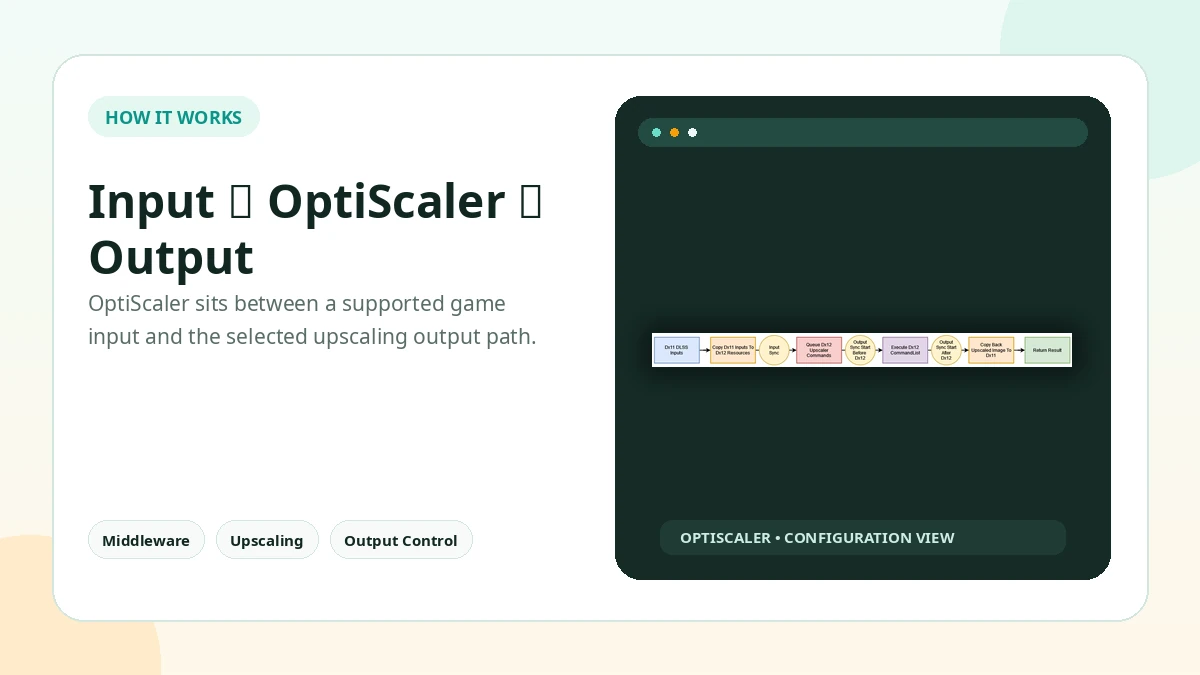
OptiScaler works as a translation layer between a supported upscaler input exposed by a game and an output backend selected by the user. In compatible titles, this makes it possible to replace one temporal upscaler path with another and tune related image-quality settings.
From Game Input to Selected Output
Check whether the game exposes DLSS, FSR, XeSS, or another supported temporal upscaler path. Place the required files beside the correct game executable, open the OptiScaler overlay with Insert, choose a compatible output backend and quality mode, then confirm the intended output is active before tuning.
What Is OptiScaler?
A community tool that intercepts supported in-game upscaler calls and hands them to another supported upscaling backend, with extra tuning on top: overlay-based configuration, sharpening and scaling controls, and experimental frame-generation paths in some DirectX 12 scenarios.
Supported APIs and Platforms
DirectX 11 is supported, although output methods and behavior can differ from DirectX 12. DirectX 12 has broad support and is the API used by experimental OptiFG. Vulkan is supported with game and output limits. Windows is the primary desktop environment, and Linux is possible through compatible Proton or Wine setups.
Current Reference Build: 0.9.4
Version 0.9.4 (July 2026) is the current release reference. It focuses on updated FSR 4.1.1 / FFX 2.3 behavior, revised setup handling, and additional compatibility fixes. It comes as a ZIP archive: back up any game files that may be replaced, then extract it next to the main game executable.
Practical Tradeoffs
Game-by-game compatibility can vary, incorrect proxy or file placement may cause crashes, online anti-cheat environments create account risk, and some outputs have hardware, driver, or API requirements. In return you get flexible upscaler output choices and detailed tuning through an in-game overlay.
Practical Checklist
- Check which API the game runs: DirectX 11, DirectX 12 or Vulkan.
- Keep original files backed up before changing the game folder.
- Test one setting or backend at a time.
- Avoid anti-cheat protected online sessions.
- Document the working configuration before updating.
Related Guides
Continue with the related guides in the sidebar for setup, compatibility, performance, or safety topics.