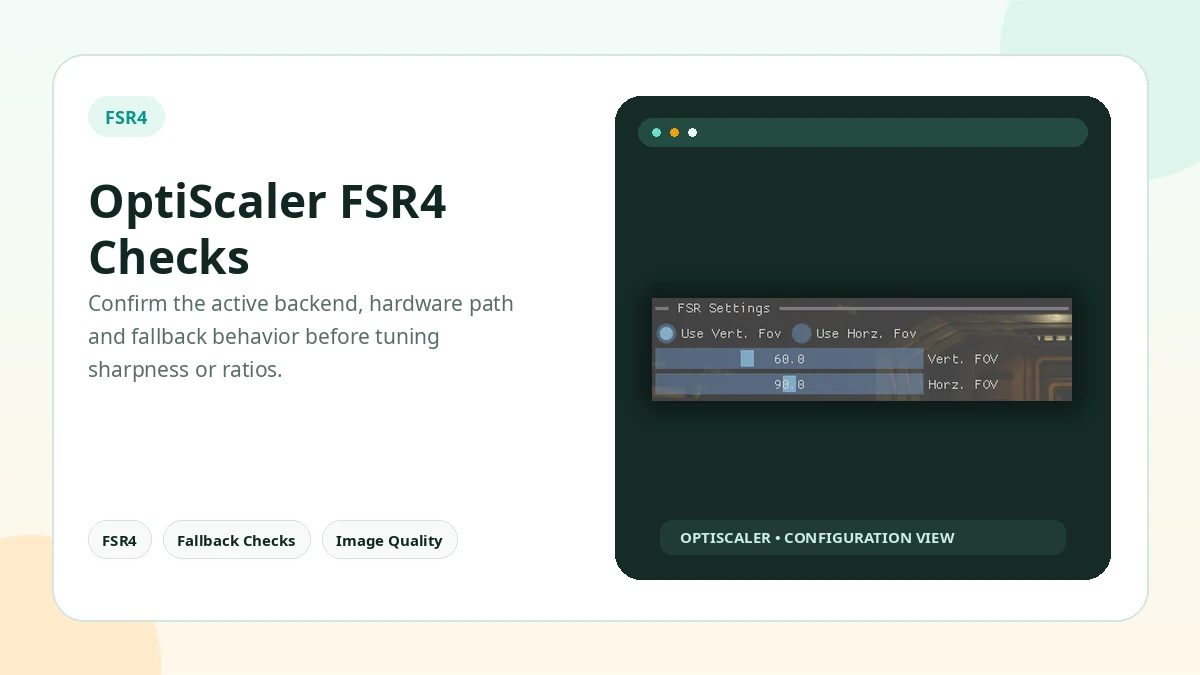
OptiScaler FSR4 support is more nuanced than simply choosing FSR4 in a menu. The active model, GPU capability, driver or SDK path, and internal fallback behavior can change what is actually running.
Watch for Fallback
If the selected FSR4 path cannot run, the software or SDK may fall back to another upscaler. This is why visual quality alone is not enough to prove FSR4 is active.
Understand Hardware Support
Different FSR4 model formats, the INT8 path included, have different hardware requirements. A newer GPU may support the preferred path while older hardware may need another compatible model or may not support it at all.
Use Status Indicators
Where available, enable the OptiScaler backend indicator or FSR watermark and check that the reported output matches the intended FSR4 mode rather than a fallback.
Test Image Quality and Performance
Compare a fixed camera position, fine geometry, foliage, motion and UI elements. Then compare frame time, not just average frame rate.
Keep the Stable Option
If a newer FSR4 path produces artifacts on a specific GPU or driver, a previous compatible output may be the better real-world choice until the stack improves.
Practical Checklist
- Confirm FSR4 with the backend indicator or FSR watermark, not the menu label.
- Keep original files backed up before changing the game folder.
- Test one setting or backend at a time.
- Avoid anti-cheat protected online sessions.
- Document the working configuration before updating.
Related Guides
Continue with the related guides in the sidebar for setup, compatibility, performance, or safety topics.